atemzug: the user guide
From sign-up to the official activity record. Each chapter explains one part of the app, using the same terms you see on screen.
Chapter 1
Getting started
On first launch you create an account with mail and password. A short onboarding then walks you through your basics. You can change all of it later in your profile.
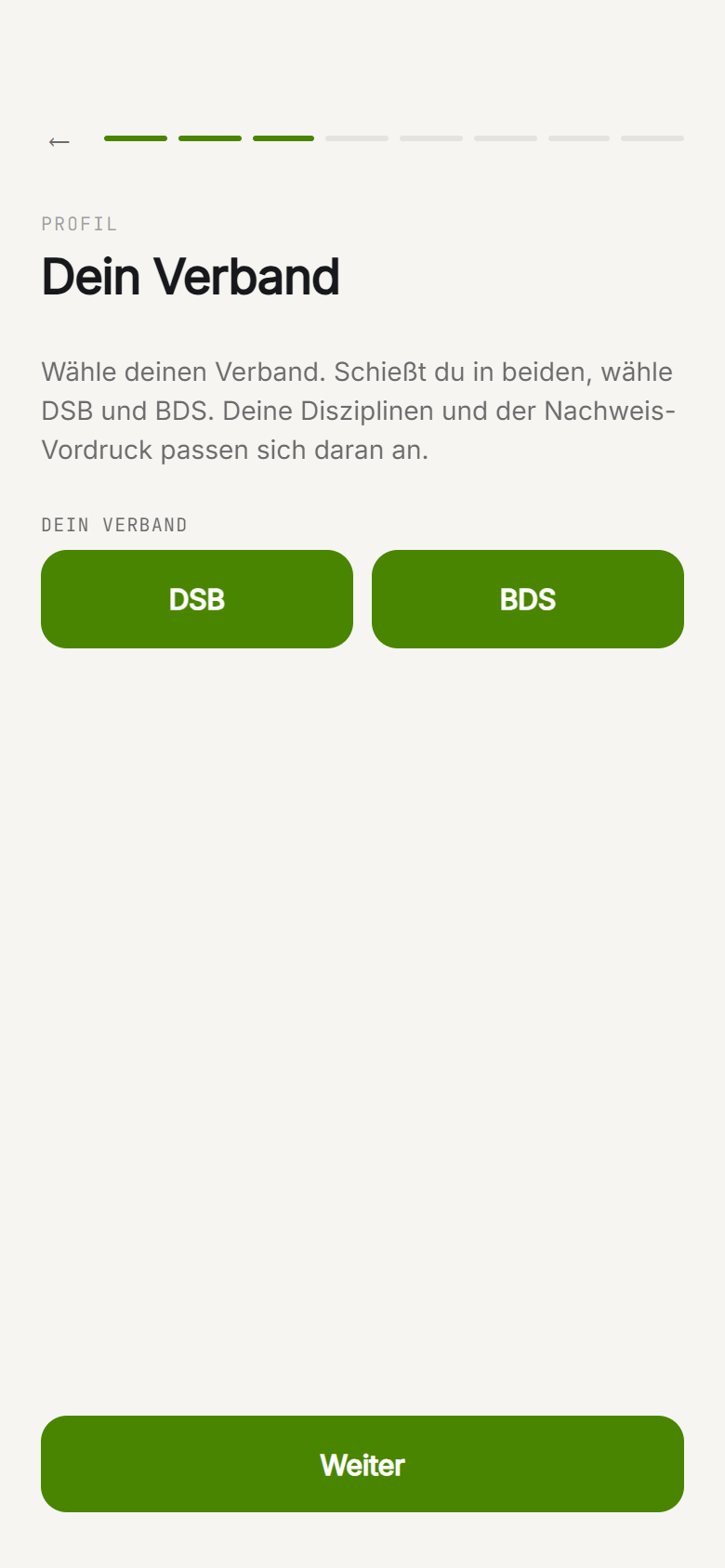
First you pick your federation: DSB or BDS. If you shoot in both, select both, and the discipline picker plus the record template will show the disciplines of both federations. Next you mark your disciplines (they show up as suggestions later) and add your club. You can skip the club step and add it in your profile.
In the step Your §14 traffic light you set the daily cap, that is how many activity dates per day count toward the record. Most state federations count at most 2 per day (Hesse/DSB = 2).
Chapter 2
Recording a session
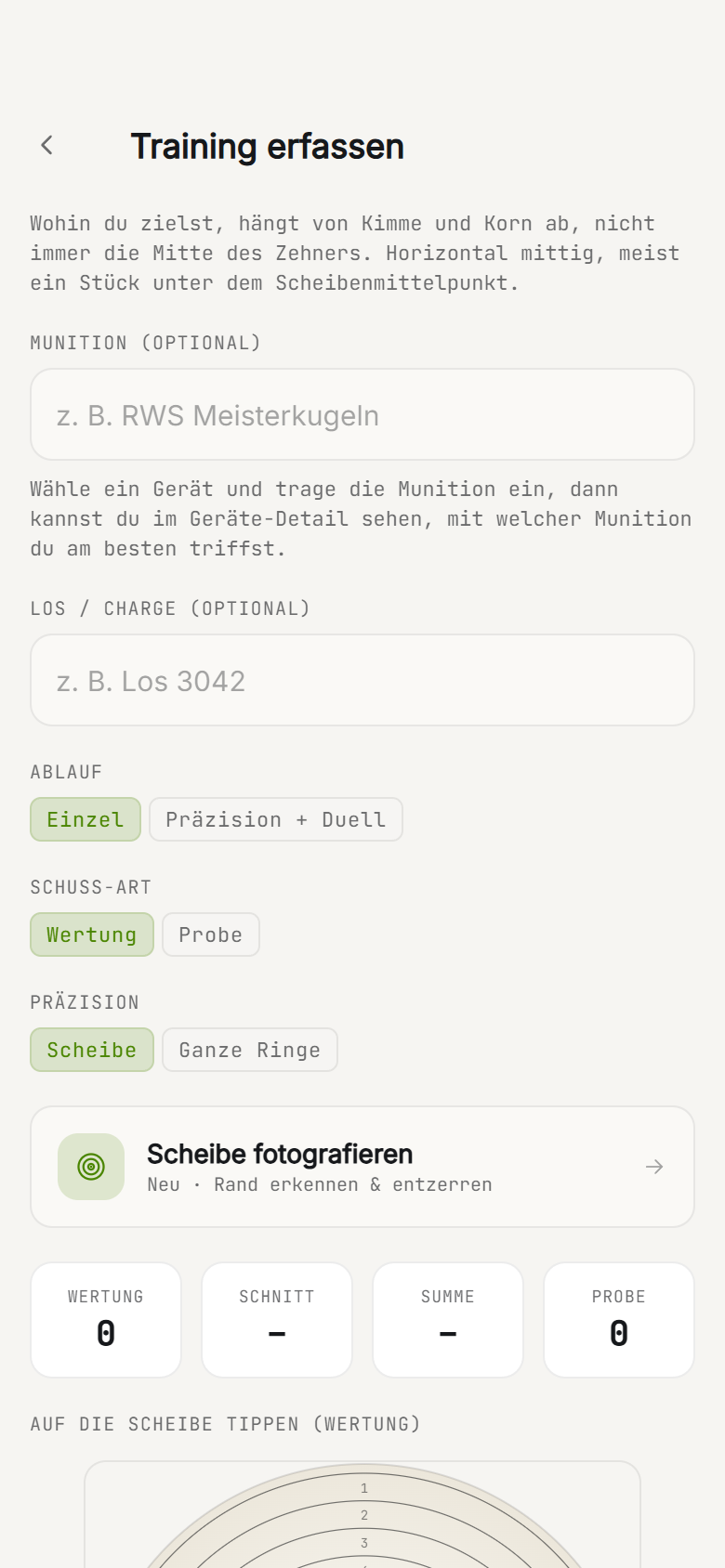
You start a session with Record session (on the home screen or with the plus). At the top you choose between Match and Sighter: match shots count toward your average and records, sighters run alongside separately.
Metronome (optional)
Via Start session you get a metronome like on the range, with phases, timings and audio cues. Two modes:
- Precision: 5 shots in 5 minutes per series at your own pace. Cues for attention, commence fire and stop.
- Duel: per series the target appears 5 times for 3 seconds, covered for 7 seconds in between while you hold ready. One shot per appearance.
Timings follow the DSB sport regulations. You enter your hits afterwards while recording, the metronome itself does not count rings.
Metadata per session
For each session you can capture:
- Gear: which firearm you used (feeds the gear statistics).
- Form of the day: 1 (weak day) to 5 (at your peak).
- Aiming point: where you aimed, for example 6 o'clock under the bull.
- Ammunition and Lot / batch: feeds the ammunition comparison per lot.
- Range officer: name and optional signature, just for your own range book.
- Note: wind, gear, how it felt.
- Do not count for challenges: excludes this session from challenges, for example a test with someone else's firearm.
With Count as a §14 activity date you control whether the session goes into the official record. For a firearm discipline with a club it is on automatically, for home or dry practice you turn it off.
Chapter 3
Tapping the target
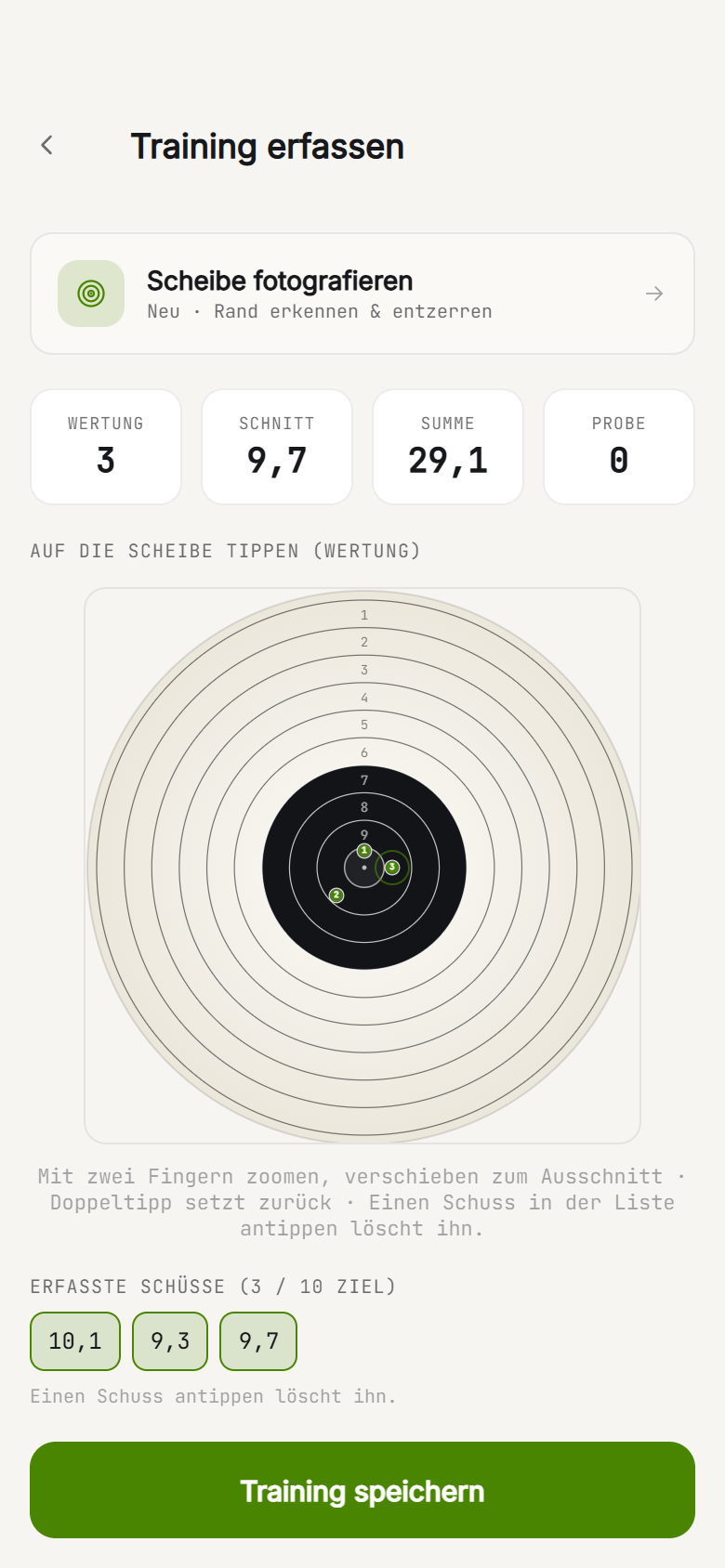
The standard input is tapping the target. You see a large target and tap where your shot landed. The app converts the hit position into a ring value and remembers the position, so group and pattern can be built later.
At the top you switch between Tap the target and Tap the ring. With Whole rings you only tap the ring, without exact position, which is faster but gives no pattern. You can set scoring to Tenths or Whole rings (ring values 0 to 10.9).
- Pinch to zoom and pan to place hits precisely.
- Double-tap resets the view.
- Tapping a shot in the list removes it again.
Below the target, Recorded shots counts up, with progress toward the target shot count you set. At the end you save with Save session.
Chapter 4
Photographing the target
Instead of placing every hit by hand, you can photograph your target. Via Photograph target you take a photo or pick one From gallery. Then Detect target finds the target edge, de-skews the image and detects the hits with their ring value.
The found hits appear as Detected hits. You can correct them:
- Tapping a hit selects it, then drag to move or delete below.
- Tapping an empty spot adds a hit.
Once it looks right, you confirm with Add to session. There is also a live camera (Open camera) that helps you line up and only fires when the target is straight and fills the frame.
For clean detection
- Fill the frame and shoot straight from the front, not at an angle.
- Even, bright light, no hard shadows.
- With overlapping holes or very small tens, just correct them briefly.
Chapter 5
Analysing the result Pro
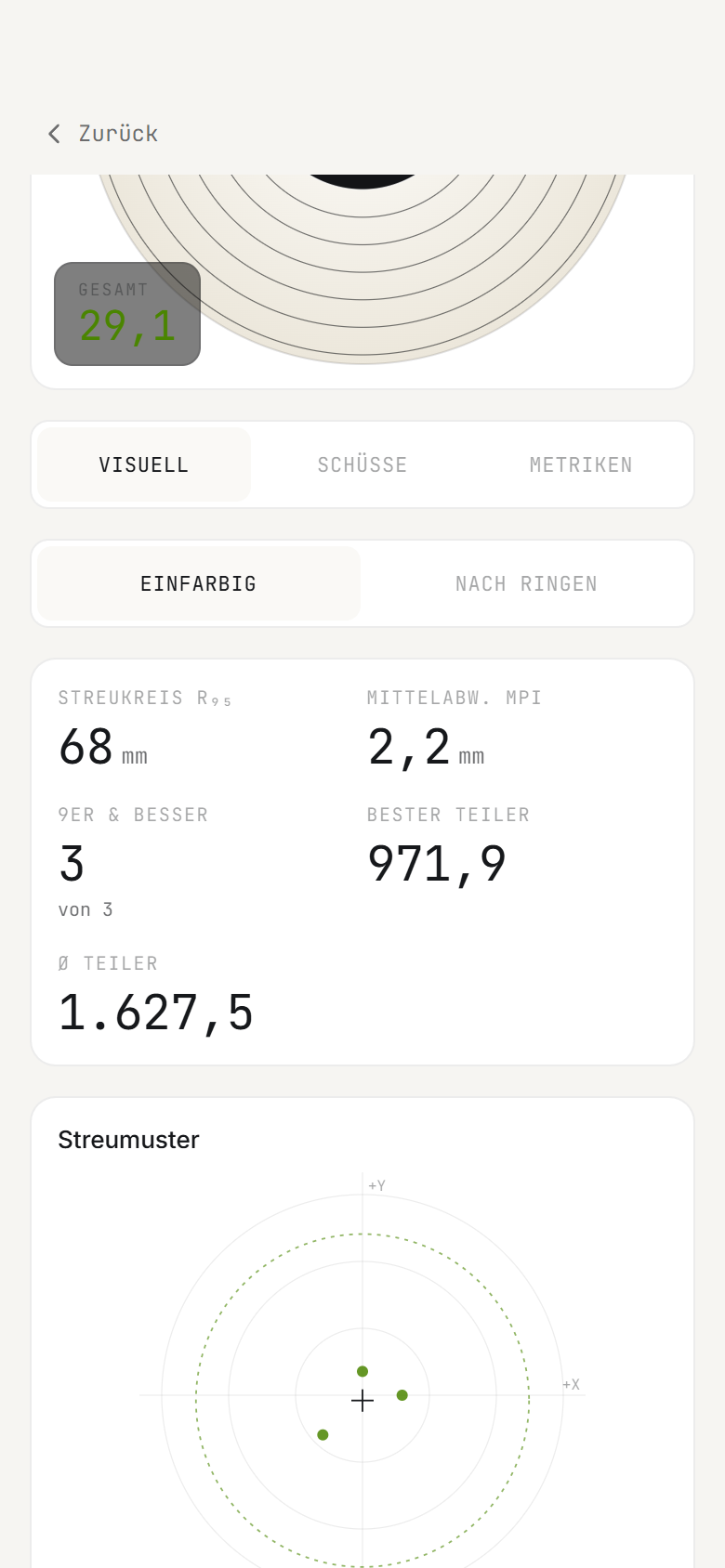
Every saved session opens as a detail view with three tabs: Visual, Shots and Metrics.
- Visual: your pattern on the target, either one colour or coloured by ring. Plus Group r₉₅ and MPI deviation, that is the mean point of impact and how tight your group sits.
- Shots: the list of all shots with position, ring, value and distance to the MPI. Here you also see Best Teiler and Avg Teiler.
- Metrics: Ring distribution and Zone analysis (where your spread tends, for example upper-left).
The Replay plays your shots in order and shows the Tendency, that is the deviation from centre in millimetres.
Pattern and group only exist for the tap-the-target input. With "whole rings" and no position, the position is missing, so the visual analysis stays empty.
Chapter 6
History and management
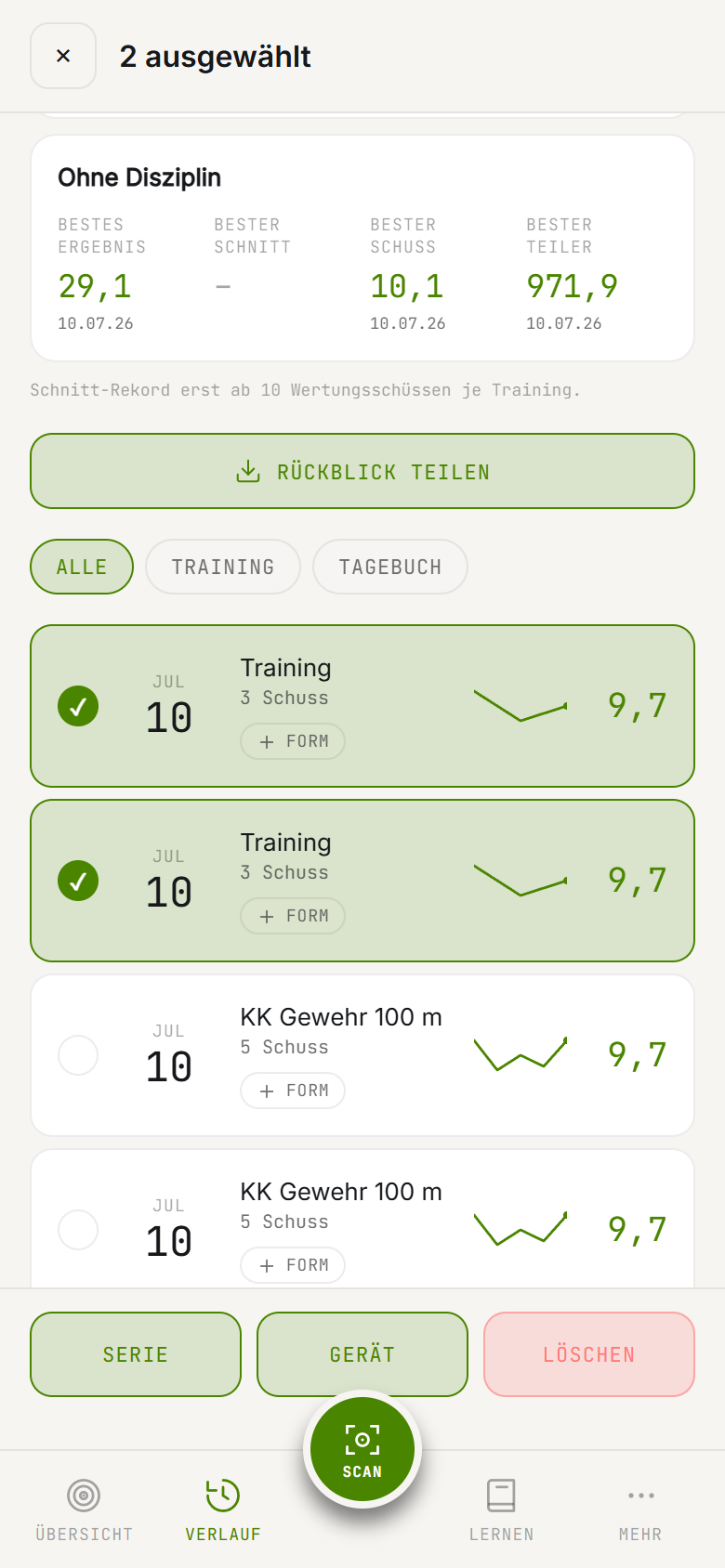
The History tab collects everything you recorded. At the top you switch between three views: Training, Series and Record.
- Training: your sessions as a timeline, with a filter for All, Training or Diary. Up top you get figures like sessions, shots and average score over the last 30 days.
- Records: best values per discipline (best result, best average, best shot, best Teiler).
Editing several at once
Long-pressing a session starts multi-select. You can then assign several sessions together to a Series or a Gear item, or delete them together. To delete a single one, swipe it left.
With Share recap you create a monthly or yearly overview as an image.
Chapter 7
Official record §14
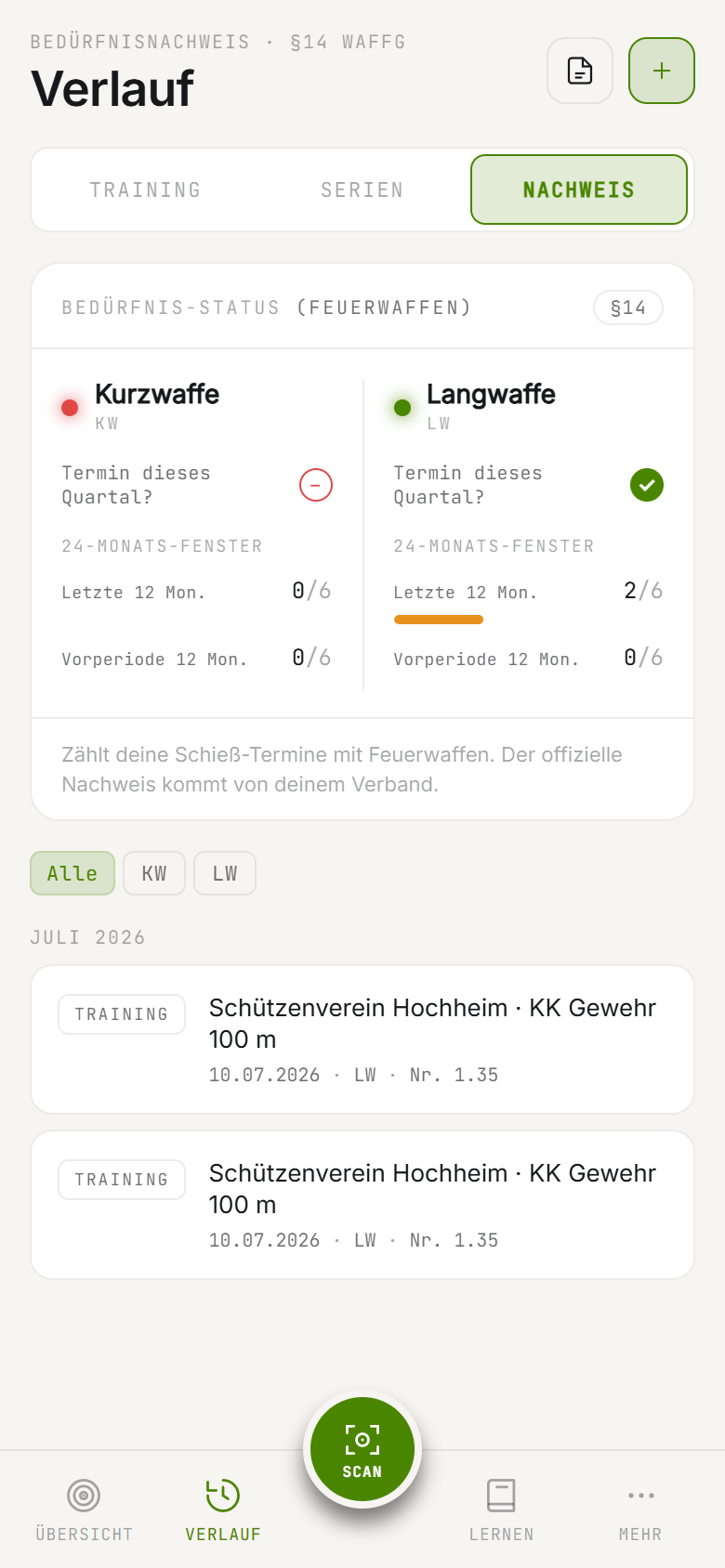
The §14 area helps you keep an eye on your shooting activity dates with firearms. There are two separate traffic lights: one for Handgun (HG) and one for Long gun (LG). Only firearms count. Air, CO2, bow and crossbow never count, no matter how often you shoot them.
When a light is green
A light turns green when one of the two rules is met:
- Quarter rule: at least 1 firearm activity date in the current calendar quarter.
- 24-month rule: at least 6 dates in the last 12 months and at least 6 dates in the 12 months before that.
So one or the other rule is enough, not both together. Per day, at most as many dates count as your daily cap allows (default 2).
The three states
- Green (met): one of the two rules applies.
- Amber (expiring soon): green still holds but flips within 30 days if no new date comes in. A heads-up, not a law.
- Red (not met): neither rule is met.
The status card shows you the parts openly: Session this quarter?, the 24-month window with Last 12 mo. and Prior 12 mo.
Export per club
Via Official record you create a PDF (As PDF / Print), filtered by period and firearm type. Each club gets its own sheet, because a club only confirms the dates that happened there. The count itself runs across all clubs together.
Chapter 8
Competition series
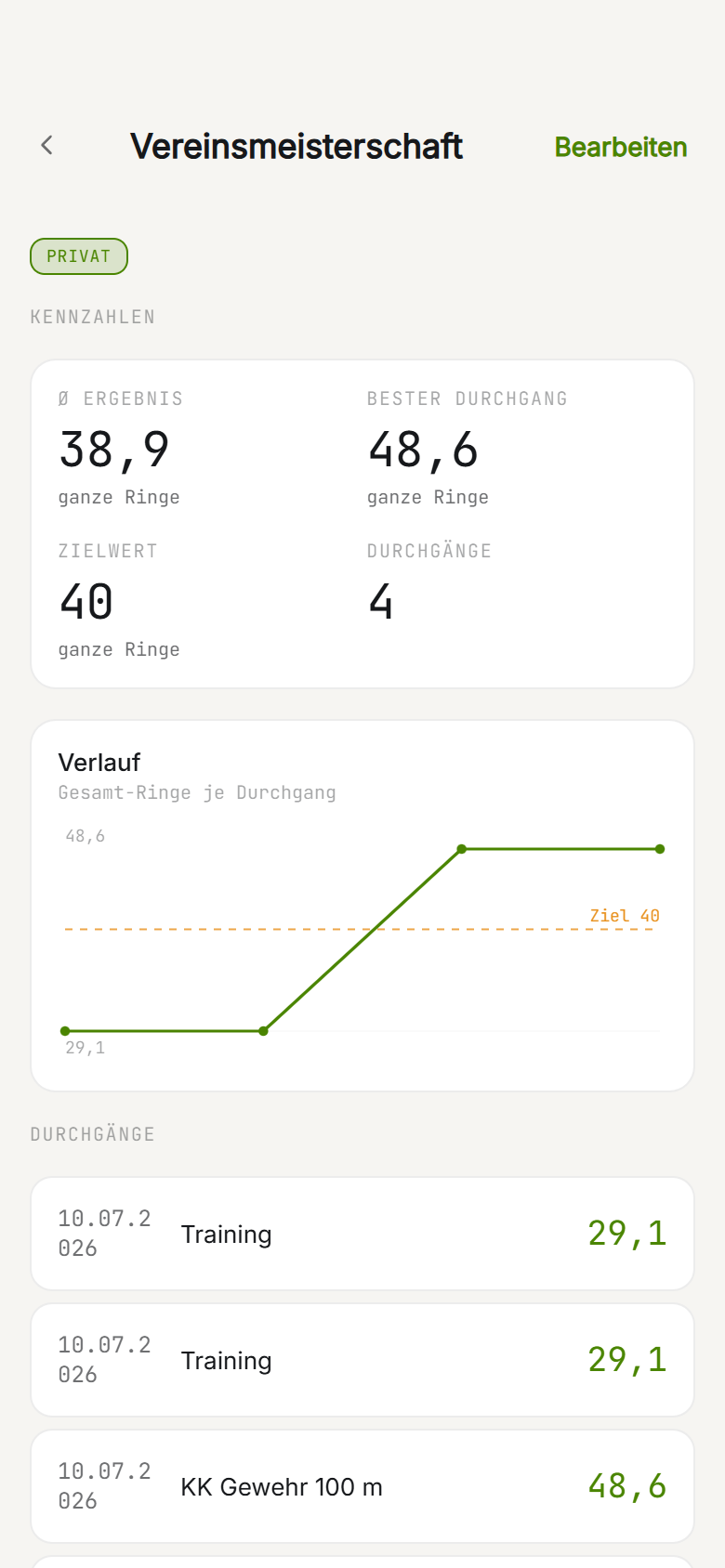
A series bundles related sessions, for example a round match across a season. Under History → Series or via Create series you set one up. As type you pick Round match, League or Private.
You can set a Discipline, a Target value (for example 375.4) and a Season (for example 2025/26). The series detail then shows figures like average result, best round and the trend of total rings per Round, with your target line.
You assign a session to a series by opening it and picking the right one under Series, or via multi-select in the history.
Chapter 9
Challenges
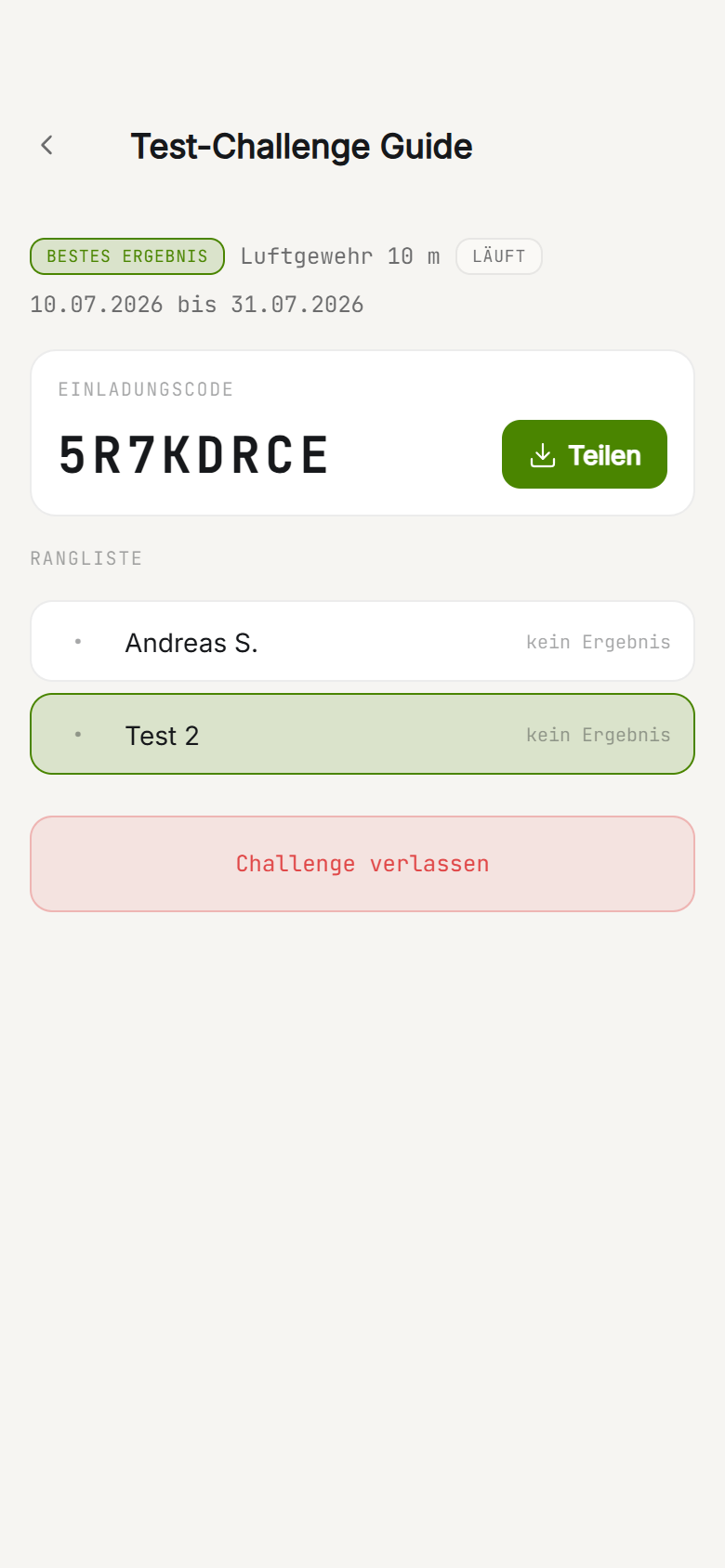
Challenges are contests with others, via invite code. You create one with Create challenge or join one via Join with code and the Invite code. To take part you set a display name once, which the others see.
Three scorings to choose from:
- Best result: the highest series result counts.
- Best group: the smallest Teiler counts.
- Target group: whoever comes closest to a set Teiler.
You show up on the Leaderboard as soon as you record a matching session in the discipline. You can take a single session out of scoring while recording, via Do not count for challenges.
Chapter 10
Gear and ammunition
Under Gear you manage your firearms and equipment. When you add one you set a Drive: Firearm, Air / CO₂ or Other. For firearms you also pick the Type, that is Handgun (HG) or Long gun (LG), so the §14 count runs separately. Firearms carry the label counts for §14.
Optionally you record maker, calibre, serial number and an image (the image stays on the device only).
Statistics and ammunition
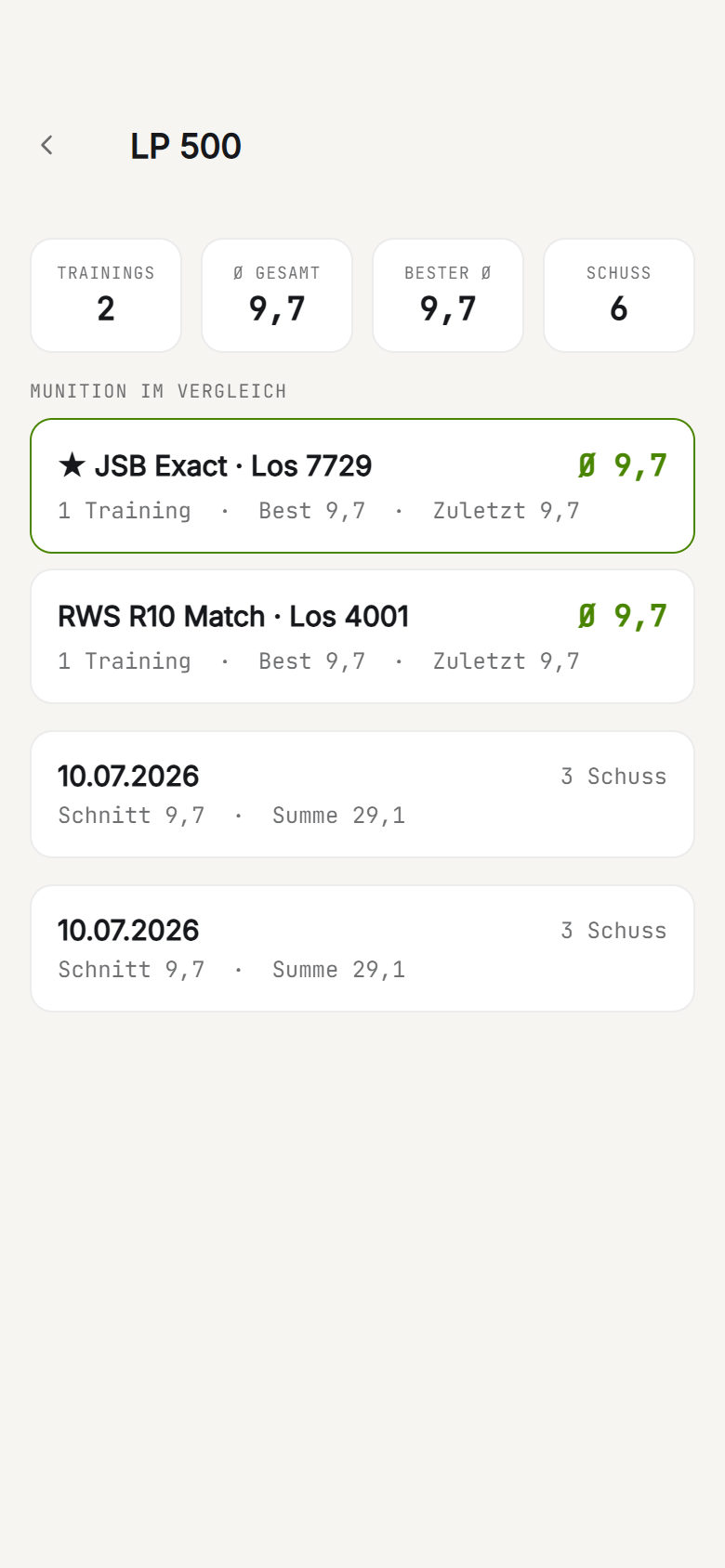
When you pick a gear item while recording, the app gathers your sessions under it. Via Sessions with this gear you see overall average, best average and an Ammunition compared: which average ring goes with which ammunition and which Lot. That is how you find what you shoot best with.
Maintenance log
In the Maintenance log you record cleaning, repair or other work, with a date and an optional shot counter.
Chapter 11
Learning and mental training Pro
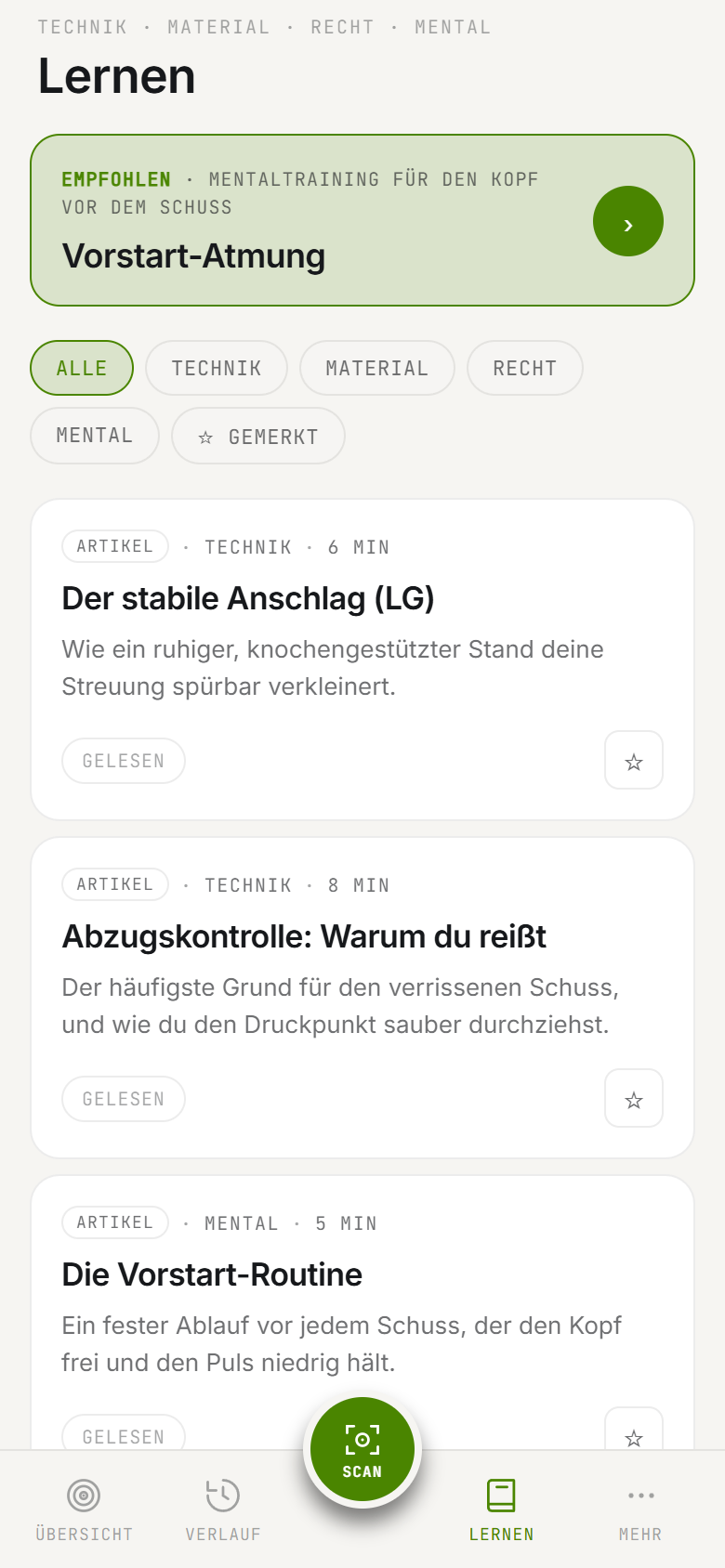
The Learn tab groups content into four categories: Technique, Gear, Law and Mental. Articles carry a reading time, exercises an exercise icon.
Under Mental you find guided exercises like a breathing exercise and visualisation, some with a timer and step by step. Matching your sessions, the app suggests articles (Recommended), and the session detail shows a fitting reading tip.
With the star you set a Bookmark and collect content in your list. You can mark items as read.
Chapter 12
Weekly goals and form
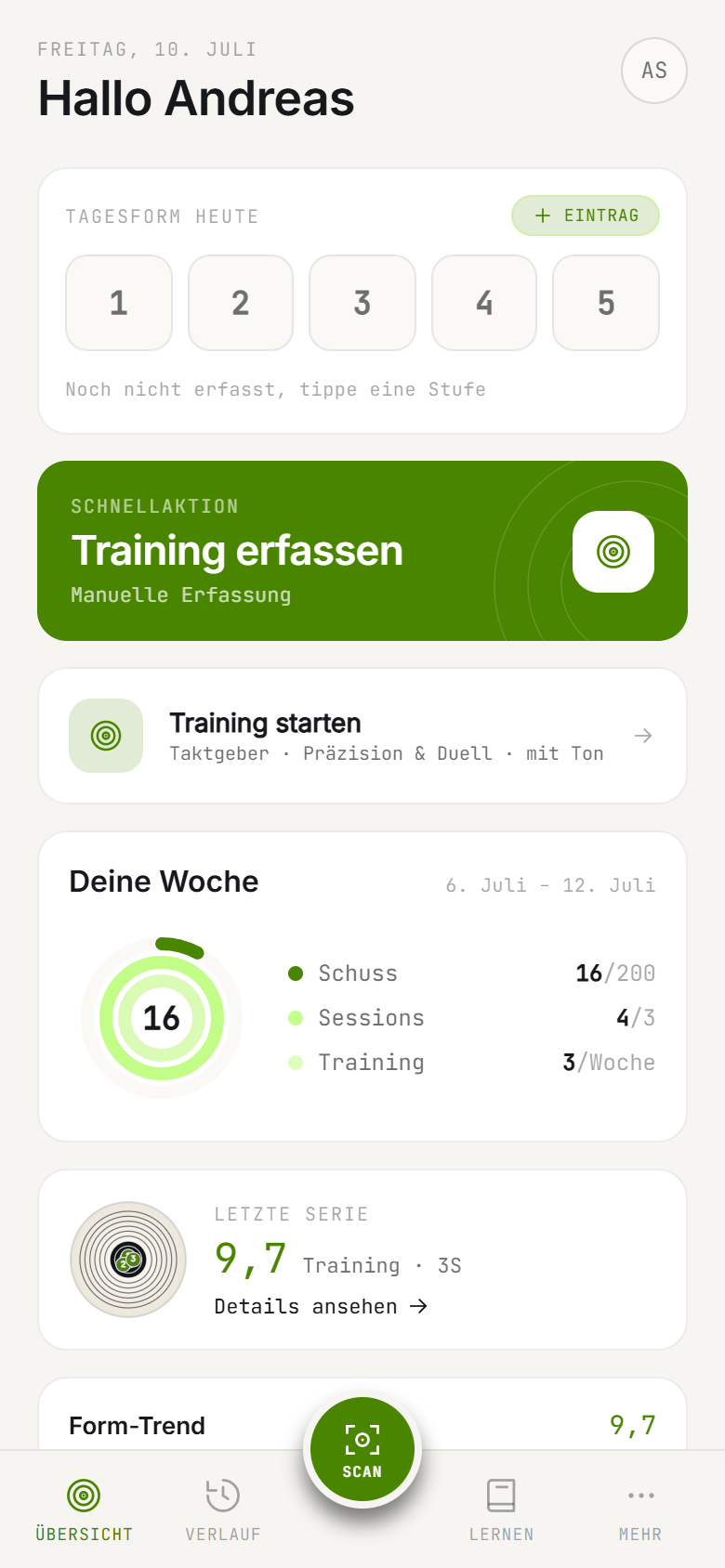
On the home screen the Your week card shows your progress against your weekly goals. In settings you set what 100% means: Sessions per week, Shots per week and Avg rings (goal). Defaults are 3 sessions, 200 shots and avg 9.2 rings.
Right above it you record your Form today on a scale of 1 to 5 (from Weak to Peak). If you record regularly, you build a days in a row streak.
From your form entries and sessions the app computes Form & performance: on good days you hit this many rings better on average than on weak ones. That makes visible what carries your form.
Chapter 13
Importing
You can read in sessions from other sources. You find all imports under More.
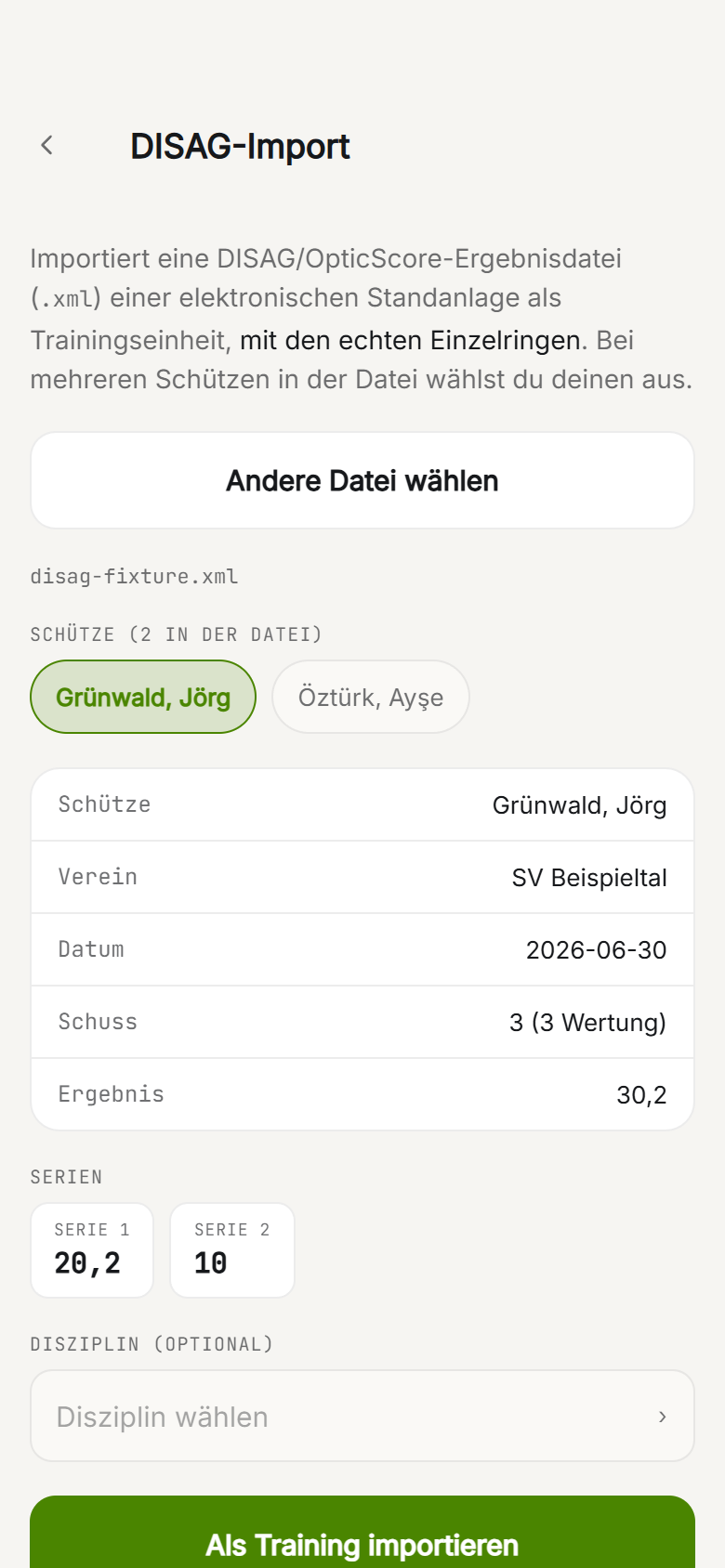
- DISAG import: a result file from an electronic range system (DISAG/OpticScore) in
.xmlformat, with the real individual rings. If several shooters are in the file, you pick yours. You choose the discipline yourself during import. - SCATT import: a SCATT export file in
.scatt-expertformat. SCATT encrypts the individual hit positions, so only date, discipline basics, shot count and total result come over, that is no individual rings and no group. - Restore: read in a backup you created earlier. The data is added, existing data stays, nothing is overwritten.
Chapter 14
Exporting and backup Pro
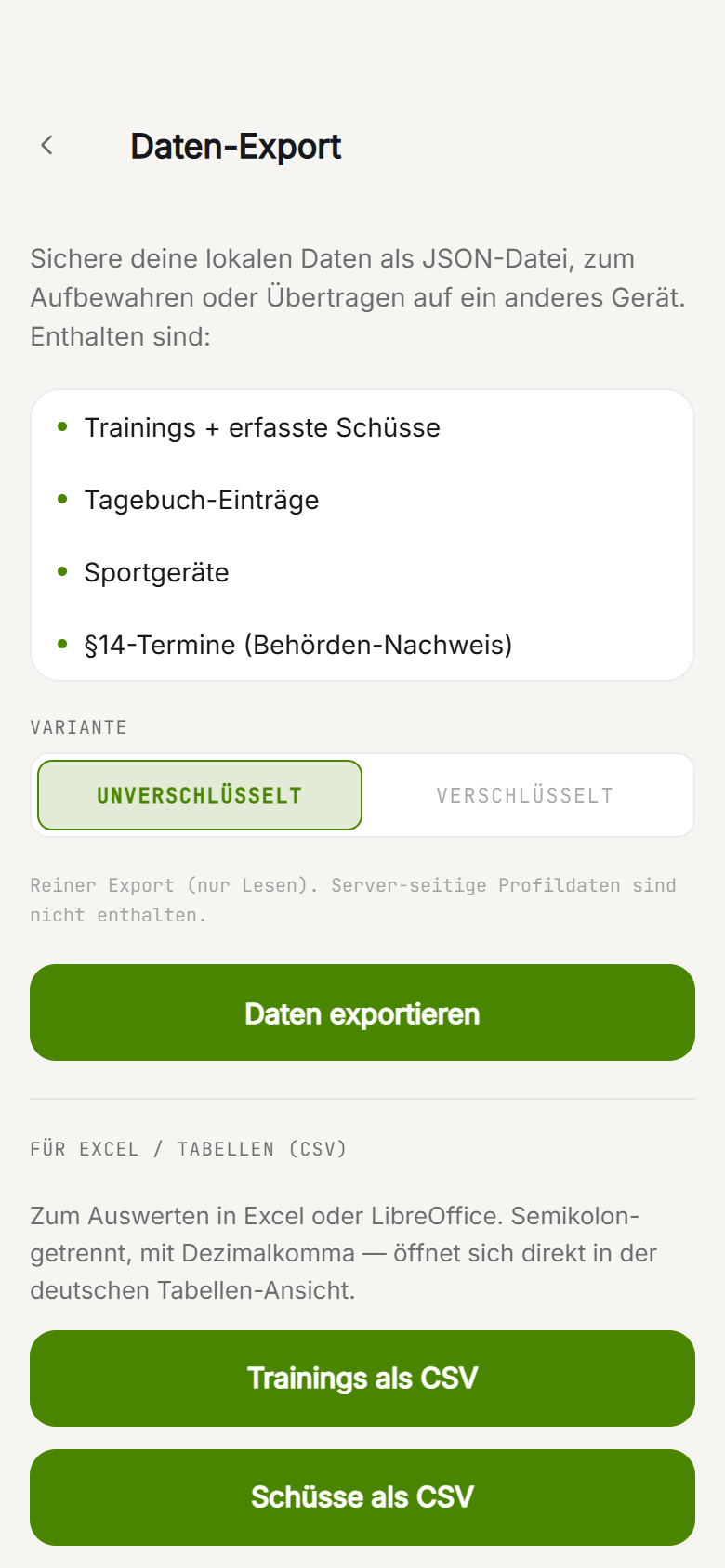
Under Export & backup you save your data in several formats:
- JSON backup: all local data as a file, to keep or move to another device. Optionally Encrypted with AES-256, then you need your password when restoring. Remember it well, without the password the backup cannot be opened.
- CSV: Sessions as CSV and Shots as CSV, semicolon-separated with a decimal comma, opens straight in the German table layout of Excel or LibreOffice.
- PDF: Results as PDF, a formatted overview to print or archive. Not an official record.
Sync reconciles your data with the cloud (EU servers). You share single results from the session detail as an image in three formats: Square, Portrait and Story.
Chapter 15
Settings and security
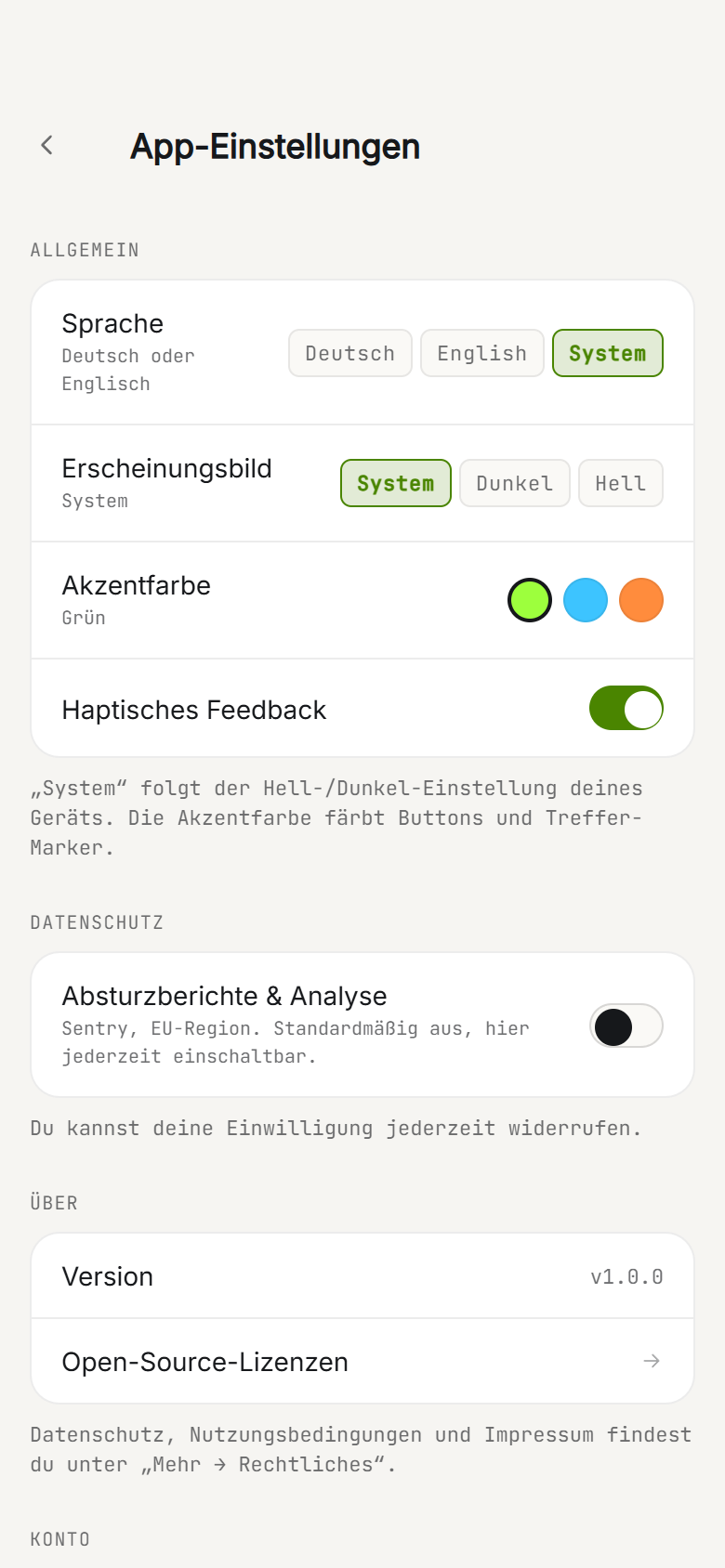
In App settings you tailor the app:
- Language: German or English, or System (follows the device).
- Appearance: System, Dark or Light.
- Accent colour: green, blue or orange, colours buttons and hit markers.
- Lock app with Face/Touch ID: biometric lock on open, with the device PIN as fallback.
- Crash reports & analytics: Sentry in the EU region, off by default, switchable here via opt-in and revocable at any time.
In Profile & federation you maintain name, club, numbers, the §14 daily cap and the second federation, in case you shoot in DSB and BDS. You can permanently delete your account and all data at the end of settings.
Chapter 16
atemzug Pro
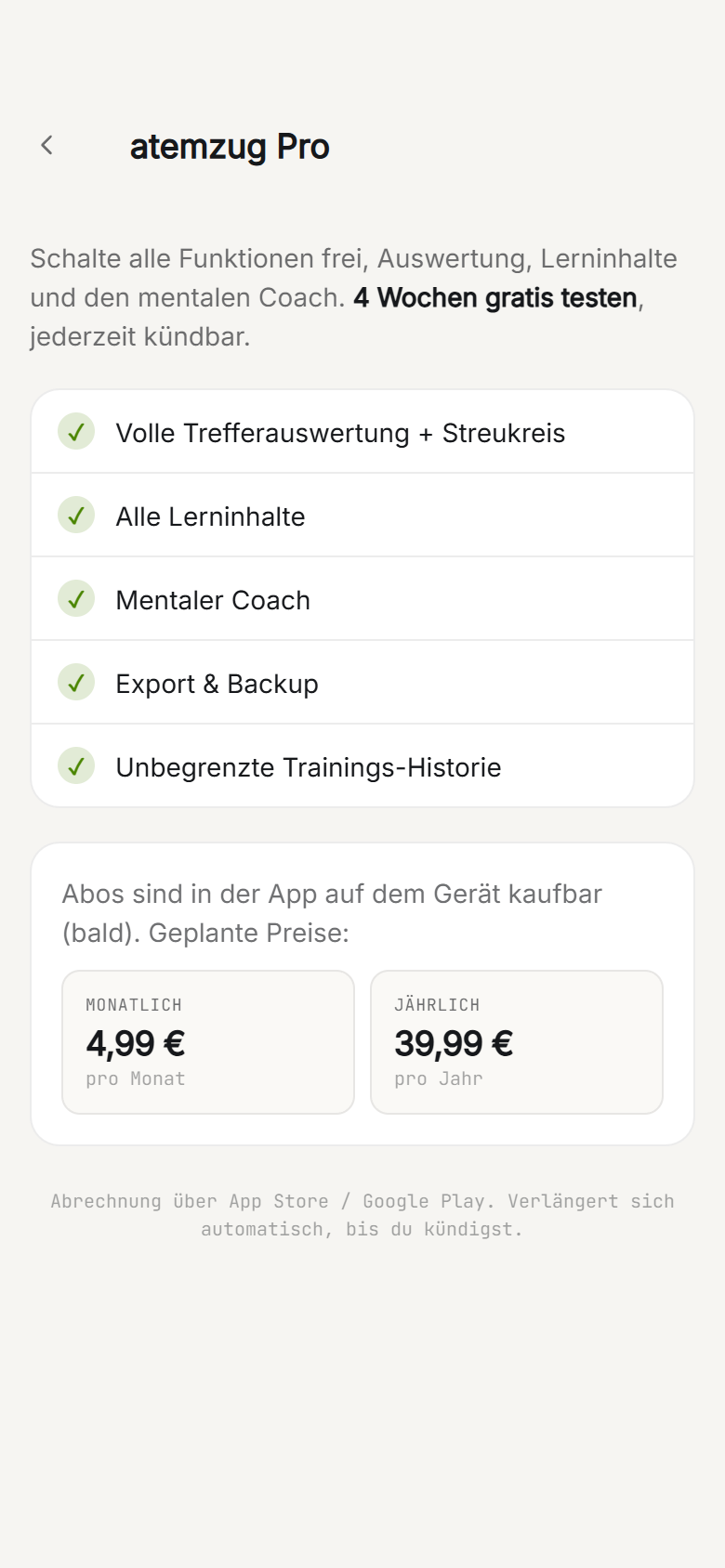
The core functions are free: recording sessions, tapping or photographing the target, the §14 traffic light and record, gear, diary and one series and one challenge each. atemzug Pro additionally unlocks:
- Full hit analysis with group, ring distribution and zones.
- All learning content and the mental coach.
- Export and backup (JSON, CSV, PDF).
- Unlimited series and challenges.
- Unlimited session history.
Pro comes as a monthly or yearly subscription. The first 4 weeks are free, the trial ends automatically, there is no subscription obligation. Billing runs through the App Store or Google Play and renews until you cancel.
Chapter 17
Tips and tricks
- Zoom for precise hits: Pinch to zoom on the target, double-tap resets. That way every tap sits right.
- Tapped wrong? Tapping a shot in the list removes it again.
- Photo saves time: With many shots, photograph the target filling the frame and straight, then just correct.
- Do not count home practice: For dry or home practice, turn off the Count as a §14 activity date switch.
- Compare ammunition: Always enter gear and Lot / batch, then the gear detail shows what you shoot best with.
- Act before the light warns: If the light is amber, plan a firearm activity date before it flips in 30 days.
- Back up regularly: Pull an encrypted backup now and then, especially before a device change. Remember the password.
- Recording form pays off: Only after a few entries does Form & performance show you what makes your good days.